
In March, we wrote about Time and Materials Projects in NetSuite. Today we discuss Charge-Based Billing, NetSuite’s do-it-all project billing engine. We’ll describe what the feature is; how to set it up; what Charges and Charge Rules do; and how to invoice Charges. In a future post, we’ll talk about how Charges work (and don’t work) with revenue recognition. We focus here on Actual Charges, ignoring Forecast Charges.
Charge-Based Billing
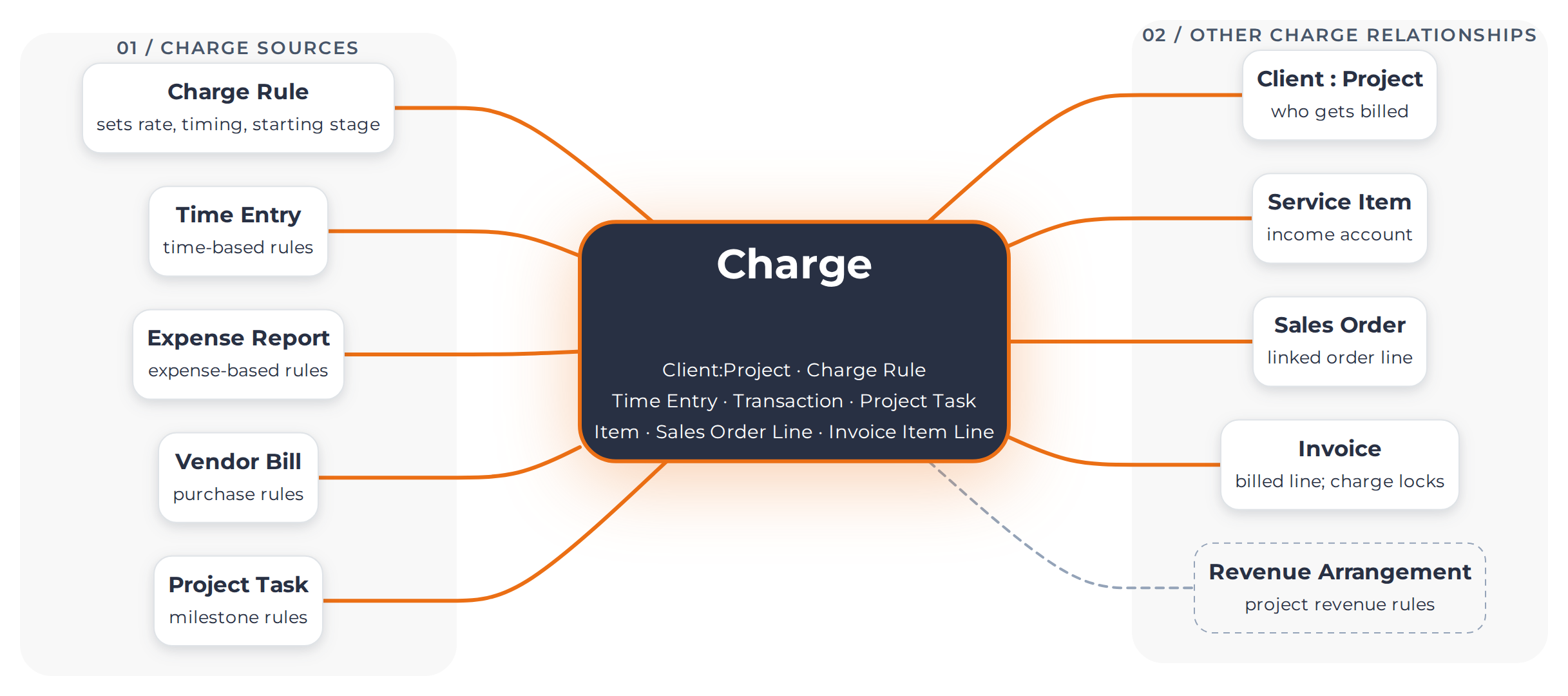
Charge-Based Billing is the most robust billing method for Projects that NetSuite offers. It takes Project activities and events and readies them for client invoicing. To do this, it creates a new record called a Charge. Charge Rules evaluate Project transactions, time entries, milestones, and dates, and create Charges for that Project. You then invoice Charges to your clients, and the Charge links the Invoice, Project, and source transaction together. It encompasses all the ways you might invoice your clients for project work. It even allows you to combine different methodologies. For example, say you have a project where you’re billing time and materials up to a cap, out-of-pocket expenses (OOPs) with a markup, and a milestone at project completion. Charge-Based Billing lets you specify all those rules on your Project, and NetSuite will help you ensure that your invoices are always current, complete, and as accurate as your data entry.
A Charge links a Project to an Invoice line, and to the source transaction, whether time entry, expense report, milestone, or other. It doesn’t have G/L impact on its own, but it has a dollar value. Charges that are in Ready stage are available to invoice, and one or more Charges will link to each invoice line. NetSuite groups them by Item.
Basic Setup
- Turn on Charge-Based Billing at Setup>Company>Enable Features>Transactions, in the Billing section. You need to have Project Management and Advanced Billing enabled in order to enable Charge-Based Billing. If you sell Time and Materials work, Charge-Based Billing works best if you have Billing Rate Cards enabled.
Enabling this feature adds a new set of subtabs under the Financial tab on Projects. These subtabs display many of the record types enabled when you enable Charge-Based Billing. The most important are Charges and Charge Rules. - Set default Charge Stages for the different Rule Types at Setup>Accounting>Accounting Preferences>Items/Transactions. You can override this default on individual Project Charge Rules. Most organizations will have the same policy for nearly all Projects of a given type, so get the default right.
- Enable Billing Rate Cards (if needed).
- Create Service Items. On a Charge-Based Project, time entries must have a Service Item, which will be used on the Charge and then again on the Invoice line. Service Items are also required for use on Fixed Fee Charges.
- Create Expense Items for each Billable Expense Category. An Expense Item allows an employee Expense Report line to be billed through on a client Invoice.
Setting up a Charge-Based Project
When creating a new Project, set the Billing Type to Charge-Based. Note that Charge-Based Billing overrides any billing schedule on a Sales Order for this Project. If you are using time entries to drive either billing or revenue recognition (more on that in a future post), you’ll want to use a Billing Rate Card and check the “Create Charge Rule” checkbox. This will create a Charge Rule on the next save of the Project.
Creating Charge Rules
There are four types of Charge Rules: Fixed Fee, Time-Based, Expense-Based, and Purchase-Based. You can have multiple Charge Rules of most rule types. The one exception is Project Progress – you can only have one of those.
NetSuite will execute the rules in the order you specify.
Fixed Fee
A Fixed Fee Charge Rule can be set to create Charges on a Fixed Date if the project follows a standard billing schedule. It can be based on completion of Milestones, which are a subtype of Project Task. Or it can be based on project progress. Note that for project progress rules, NetSuite uses the system-calculated percent complete for the project, not any value users may have entered in the percent complete override list.
Time-Based
You can build Time-Based Charge Rules that leverage Billing Rate Cards, and that’s what we recommend unless you sell services using a blended rate. With a rate card, you can specify a rate for each Billing Class. Alternatively, a Time-Based rule can leverage Resource rates from the Employee/Vendor record, or the price list on the Service Item from your time entries.
For each Time-Based rule, you can set a rate multiplier, a cap in dollars or hours, and optionally specify a rounding method for hours.
In certain circumstances, the Price field on the time entry and the Price field on the related Charge may differ. More on that here.
Expense-Based
Billable Employee Expense Report lines can generate Charges, with optional markup or mark-down. Expense rules can only create Charges in Ready or Hold stage. Non-Billable is not available.
Purchase-Based
Likewise, billable Vendor Bill lines can generate Charges. Like expenses, purchase rules can have markup/down. Only Service Items and Non-Inventory Items for Resale on bills are considered for Charges. The Expenses tab is ignored altogether.
A Simple Example
Green Flash, an advertising agency specializing in campaign design and execution for the outdoor sports industry, is working on a year-long campaign with a boat maker. The project will be Time and Materials up to a cap of $240,000, after which Green Flash wants to record Charges in a Hold stage for review and negotiation. Incidental expenses are passed through with no markup. Media purchases will be passed through with a 10% markup, and other purchases passed through at cost.
First, we set up the Project. Our guidance is to use Project Templates as much as possible for setting up Projects with Charge-Based Billing. In the clients we’ve worked with, nine out of ten client projects will be similar, or have only a few variations. Using a template for each common flavor lowers the effort of creating Charge Rules manually and reduces the risk of error. More on Project Templates here. For this example we’ll create the Charge Rules by hand:
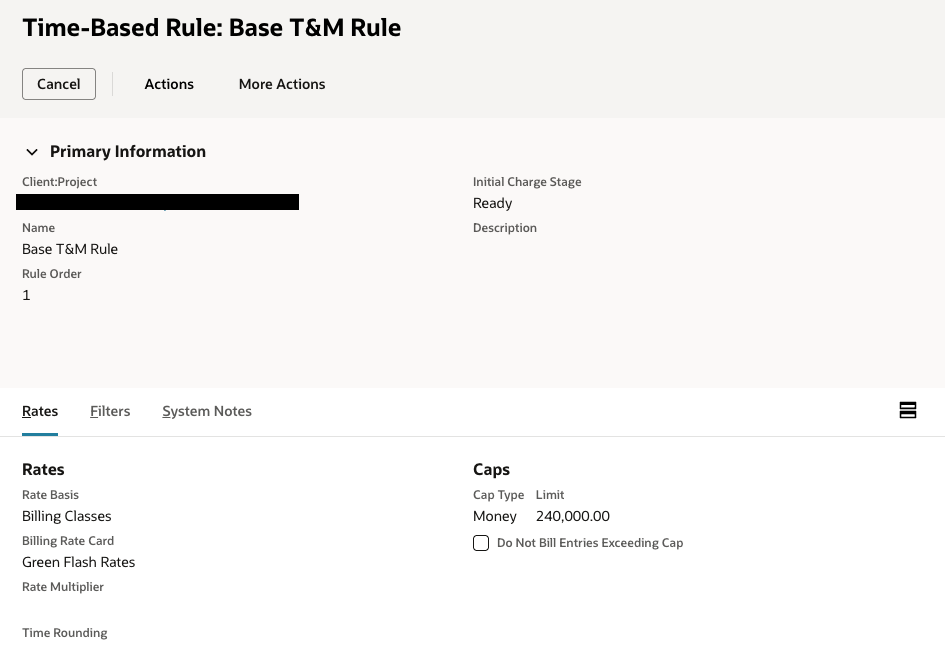
- Time rule for the billable hours. Create a time rule with a Money type cap of $240,000. Use Billing Classes and the project Billing Rate Card to get Charge rates. Set the initial Charge Stage to Ready.
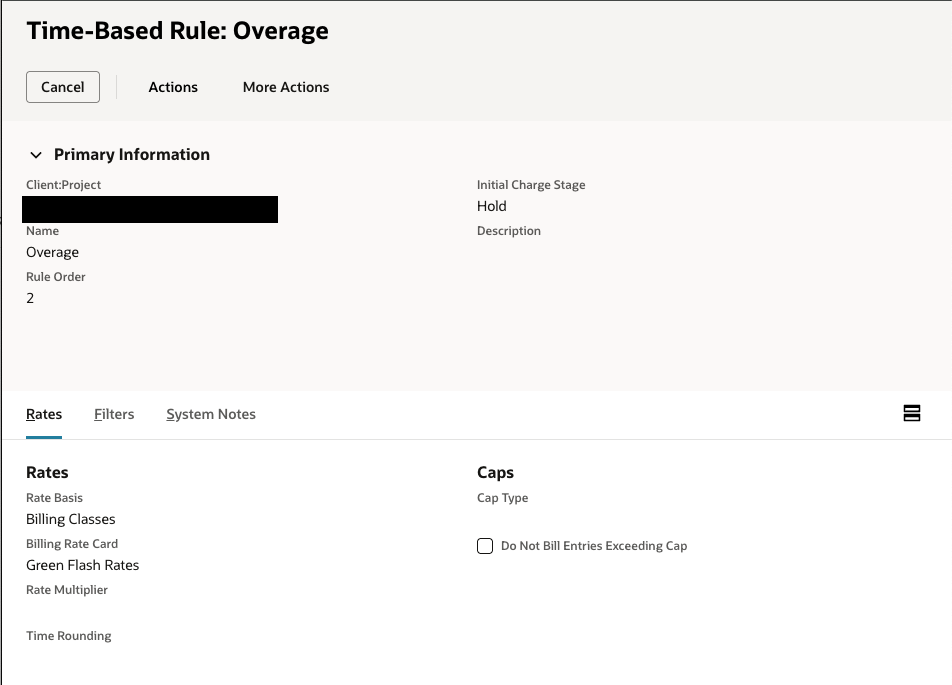
- Time rule for overage hours. Create a time rule with no cap, again using Billing Classes and Billing Rate Card. Set the initial stage to Hold.
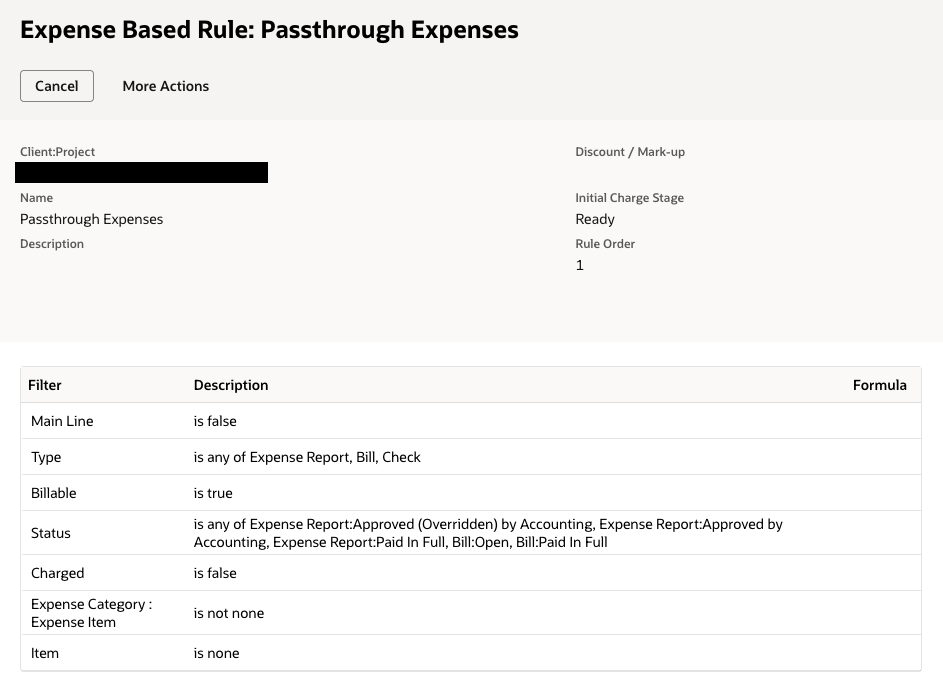
- Create an Expense-Based Rule for passthrough employee expenses. Note that many of the criteria are pre-selected and are hard-coded.
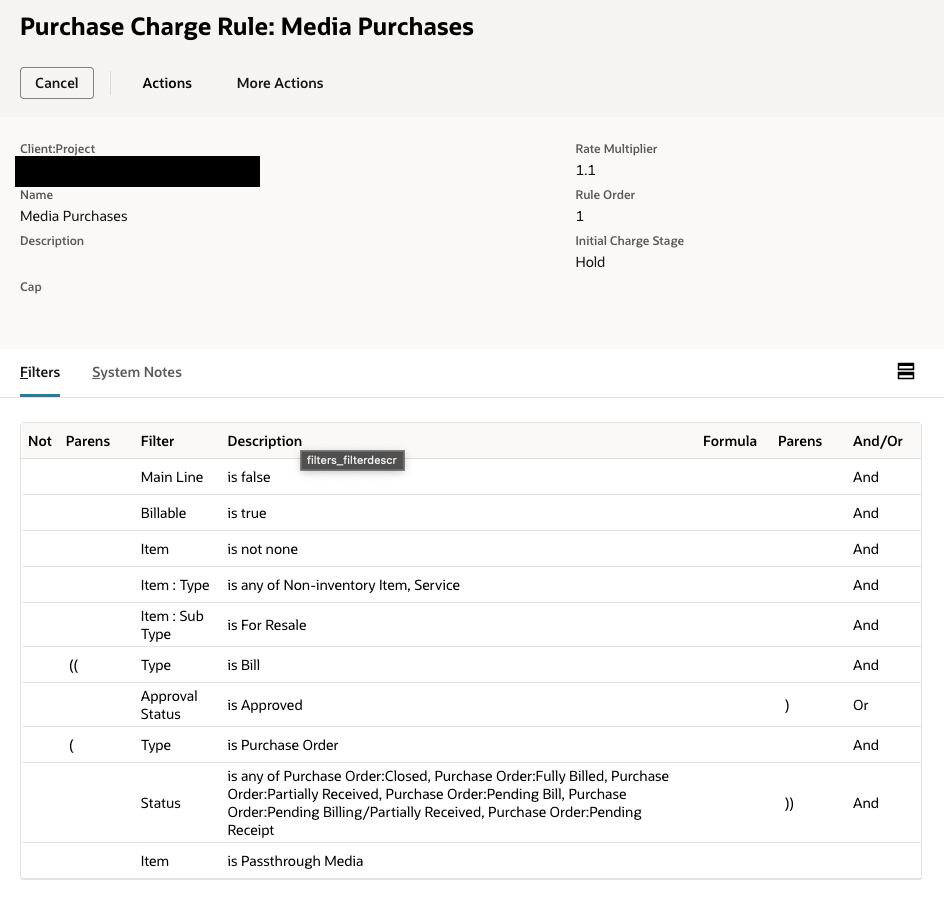
- Create a Purchase Rule for media. Enter 1.1 in the Rate Multiplier field and add Item = Passthrough Media to the pre-selected criteria. In this instance we’ve set the initial Charge Stage as Hold so the Green Flash team is sure to review them before invoicing.
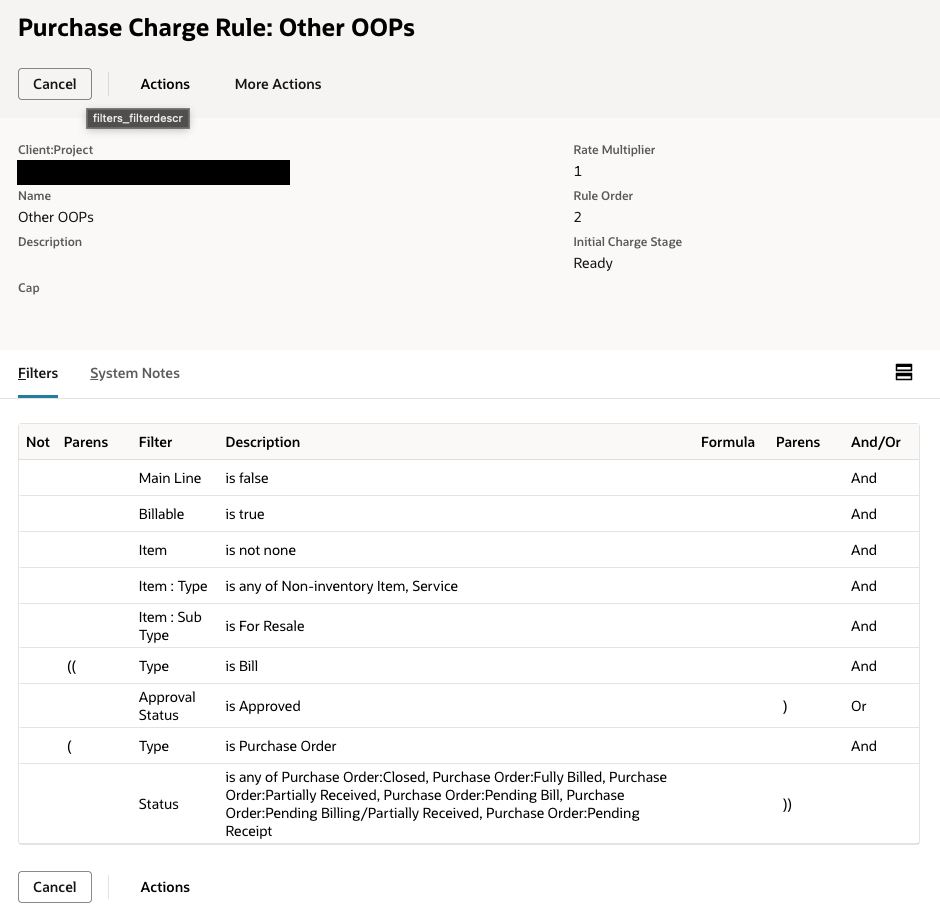
- Finally, create another Purchase Rule for all other OOPs.
Generating Charges
Charges are generated automatically overnight in bulk for all active Projects. You define which Projects are active in the Project Status list at Setup>Accounting>Accounting Lists. Click Edit on the Status value and select “Create actual charges during midnight run” for the status or statuses you want automatic Charges for.
For an individual Project, you can navigate to the Financial tab, select the Charge Run History subtab, and click Generate Charges.
You can also manually create a Charge at Transactions>Customers>Create Charges. This is important during testing but is not recommended for managing project operations.
Charges are governed by the Stage field. Those in Ready stage are available to invoice. Those in Hold stage are pending review. Billed Charges have already been used on an Invoice. Finally, a Non-Billable Charge is available for reporting but cannot be used on an invoice.
Once a transaction or time entry has a related Charge record, the source record is locked to all edits. In most cases, to make corrections at this point, you’ll need to delete the Charge, which unlocks the source record. Unbilled, unposted time entries, however, can be modified after the Charge is created. Any such modification deletes the Charge.
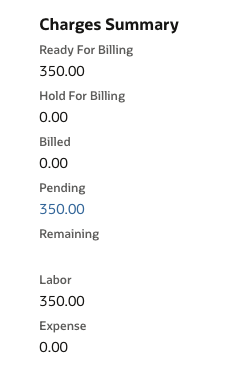
From the Project financial tab, you can see the total of pending Charges. Click the field value to drill into the Manage Pending Charges page. From there, you can confirm, update, and select Charges and prep your invoice.
It’s worth noting that, though the Charge record can be scripted, the midnight Charge run does not trigger User Event scripts. Scripts that execute on a scheduled basis are the only types we’ve had success with to modify Charges.
Invoicing Charges
You can invoice Charges directly from the Project, from a Sales Order, or, as a last resort, at Transactions>Customers>Invoice Billable Customers. From the Project, select New Invoice. From the Sales Order, choose Next Bill or Bill Remaining. When the Invoice page loads, click Add Charges to As-Of Date.
From the Project, all Project Charges in Ready stage will invoice. From the Sales Order, if you have enabled the Consolidate Projects on Sales Transactions preference, adding Charges will include all Charges for the Customer, across all Projects.
Use Invoice Billable Customers to bulk-select many Projects and create Invoices for all of them at once. We haven’t documented the full behavior here, but our peers report Invoices that aren’t linked back to parent Sales Orders, and in one case an issue with duplicate Revenue Arrangements.
Final Thought
For project operations and finance teams, managing many different flavors of Projects can be more hassle than it’s worth. Charge-Based Billing can handle all the billing scenarios available in the other billing types and can combine and augment them in substantial ways. Our guidance is: if any of your Projects have billing operations complex enough to warrant using Charge-Based Billing, commit to using it for all Projects.
Sources
- Oracle, Charge-Based Project Billing — https://docs.oracle.com/en/cloud/saas/netsuite/ns-online-help/section_3752830510.html
- Oracle, Using Charge-Based Billing — https://docs.oracle.com/en/cloud/saas/netsuite/ns-online-help/section_1214120416.html
- Oracle, Setting Up Charge-Based Billing — https://docs.oracle.com/en/cloud/saas/netsuite/ns-online-help/section_3752833114.html
- Oracle, Creating Charge-Based Projects — https://docs.oracle.com/en/cloud/saas/netsuite/ns-online-help/section_3752833293.html
- Oracle, Understanding Charge Rules — https://docs.oracle.com/en/cloud/saas/netsuite/ns-online-help/section_3752833778.html
- Oracle, Creating Charge Rules — https://docs.oracle.com/en/cloud/saas/netsuite/ns-online-help/section_4369706980.html
- Oracle, Using Caps with Charge Rules — https://docs.oracle.com/en/cloud/saas/netsuite/ns-online-help/section_3770324541.html
- Oracle, Using Billing Rate Cards — https://docs.oracle.com/en/cloud/saas/netsuite/ns-online-help/section_4689764278.html
- Oracle, Generating Charges — https://docs.oracle.com/en/cloud/saas/netsuite/ns-online-help/section_3752833920.html
- Oracle, Approving Pending Charges — https://docs.oracle.com/en/cloud/saas/netsuite/ns-online-help/section_3752834116.html
- Oracle, Billing Charge-Based Projects — https://docs.oracle.com/en/cloud/saas/netsuite/ns-online-help/section_3752834264.html
- Oracle, Project Billing — https://docs.oracle.com/en/cloud/saas/netsuite/ns-online-help/section_N1204906.html
- GURUS Solutions Answers, project billing types and service items — https://answers.gurussolutions.com/?p=2080
- NetSuite Professionals archive, unlinked charge-based invoices — https://archive.netsuiteprofessionals.com/t/33286023/hi-team-we-use-charge-based-billing-for-our-projects-right-n