NetSuite's Time and Materials project billing type is built to interact with a Sales Order. This post walks through the mechanics of setting up and invoicing T&M Projects via Sales Orders.
The Role of the Sales Order
On a T&M project, the Sales Order is not an order in the usual sense. The line items on it are estimates of billable work, not commitments. NetSuite flags them as "billable estimate" lines, and they behave differently from regular Sales Order lines.
When you bill a T&M Sales Order, the estimate lines are stripped off and replaced by actual approved billable time and expenses for the billing period. The invoice is built from time entries and expense reports, not from the Sales Order lines themselves. NetSuite will not show the "Next Bill" button until there is approved billable time available.
The Sales Order provides the billing machinery with a transaction to work against. It holds the billing schedule, provides a container for the billing queue, and tracks what has been invoiced. But the dollar amounts on the Sales Order lines are projections based on estimated hours on the project tasks, not fixed billing commitments. If you over-bill a Sales Order line, that will be reflected in the “invoiced” quantity on the line and billable estimate will be set to false, but the Sales Order price does not prevent you from invoicing a higher amount. This is the same behavior as with any product invoice.

How Items Get Onto the Sales Order
There are two ways to populate a Sales Order with project service items, depending on the Consolidate Projects on Sales Transactions preference.
Without Consolidation
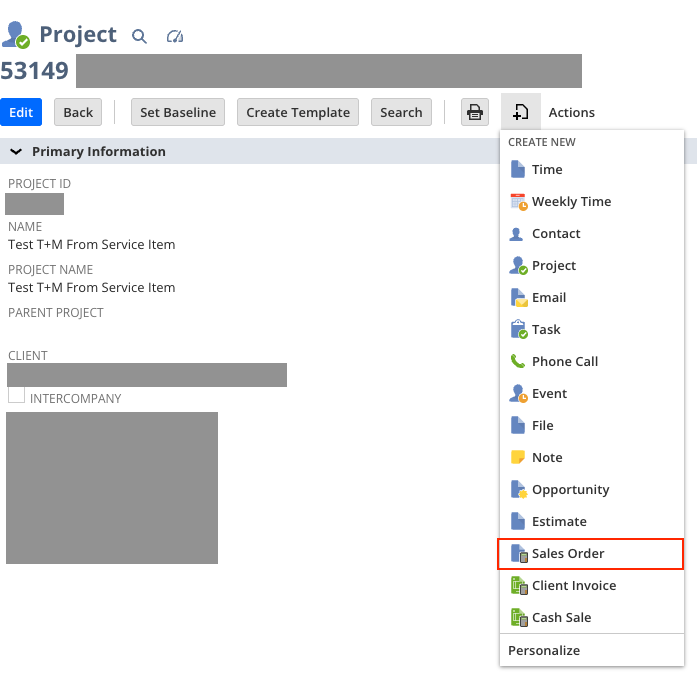
With the Consolidation preference disabled, you create a Sales Order directly from the project record. Open the project, click New, select Sales Order. NetSuite generates a Sales Order populated with the customer, the project, and the service items from your task assignments. The billing schedule from the project carries over.
If the project schedule changes later, the "Refresh Items from Project" button on the Sales Order re-sources the items from the current state of the project's task assignments.
With Consolidation
With the preference enabled, each Sales Order line has a Project column instead of a single project at the header. This lets you put multiple projects on one Sales Order.
You create the Sales Order to the customer, select a project in the dropdown above the Items sublist, and click the refresh button next to it. NetSuite pulls the service items from that project's task assignments onto the Sales Order, tagged to the project at the line level. Repeat for additional projects.
With consolidation enabled, you should customize your Sales Order form to expose the Billing Schedule column at the line level. Otherwise, a header-level billing schedule applies to all lines, even if the underlying projects have different schedules.

If the Refresh Button Isn't There
If you don't see the "Refresh Items from Project" button or dropdown, switch to the standard Sales Order form and try again. If it appears on the standard form, your custom form has the button hidden. You can add it back in the Actions menu on the custom form editor.
If it's not on the standard form either, check that the project has a billing schedule assigned on the Financial subtab, that tasks have resource assignments with service items, and that the project status supports billing.
The Billing Cycle
Once the Sales Order exists with project items, the billing cycle is straightforward. People enter time against project tasks. Time gets approved. Approved billable time becomes available on the Sales Order through the "Next Bill" button or the bulk Bill Sales Orders page. The estimate lines are replaced by actual time on the resulting invoice.
There is no need to close Sales Order lines manually. NetSuite will not bill an item until time has been entered and approved. Lines are considered billed after the customer has been invoiced for a quantity equal to or greater than the quantity on the order. To invoice fewer hours than originally estimated, reduce the quantity on the order.
The Billing Schedule
T&M billing schedules define a recurrence frequency and payment terms. You create one from the Financial subtab of the project record or from Lists > Accounting > Billing Schedules. A single schedule can be reused across projects.
The billing schedule must be set on the project before you create or refresh the Sales Order. Without it, the Sales Order won’t get picked up by Process Billing Operations or Invoice Billable Clients. You can still invoice manually even without a billing schedule.
If you're running consolidated projects, verify that the billing schedule on the Sales Order matches the one on the project. The Sales Order schedule can override the project schedule, and a mismatch between the two will affect how billing calculates.
Why You Should Consider Charge-Based Billing Instead
T&M billing works well for straightforward hourly billing. It was designed for billing actual hours at agreed rates. If you use time and materials billing type on your projects, your project will not be involved in any revenue transactions. It’s the most basic setup for the most basic scenario.
If your organization has any exceptions to the straightforward T&M model, consider Charge-Based Billing. With Charge-Based Billing, you can mix hourly work with fixed fees or milestone payments. It also allows you to use billing rate cards for customer-specific pricing while still having a time-based charge rule that produces a similar result to T&M but with much more flexibility around pricing, overage management, expense markup, etc. Charges generate from project activity based on rules you define, and they link to the Sales Order through a similar refresh process to what’s described above.
Neither approach is wrong. In practice, we recommend Charge-Based Billing for our services clients. As soon as there is any variation in billing models across your client base – or even any occasional exception to a straight-ahead T&M structure – Charge-Based Billing can handle it. We find our clients always have a case that requires charge rules to handle pricing, timing, or billing structure. And if some of your projects require it, you might as well use it for all of them. Give your project ops team one less decision to make.
We’ll talk more about Charge-Based Billing in a future post.
Links
Projects and Time and Materials Billing — The core Oracle help page covering T&M billing behavior, billable estimates, and the Next Bill process.
Creating Sales Orders from Projects — How to source project items onto a Sales Order, including the Consolidate Projects caveat.
Refreshing Project Items on Transactions — The refresh mechanism for both consolidated and non-consolidated modes.
Billing and Project Consolidation — How the Consolidate Projects preference affects billing schedules and Sales Order behavior.
Using the Project Consolidation Preference — The preference itself, what it enables, what it disables, and the downstream effects on transactions.