NetSuite's aging reports run on date fields. You can age by transaction date or by due date. Those are the options. There is no setting to age by accounting period.
NetSuite preferences allow you to force the date and period to match. Many of our clients use that. Others want the flexibility to record a bill dated, say, June 28, in the July period. This can be a recurring problem at close, because the aging has to tie to the balance sheet, and the balance sheet is by period. Our June 28 example will fall in the wrong bucket relative to the period it hit the books. If that’s a normal part of your business operations, you end up exporting all open payables and rebuilding the aging in Excel every month.
There’s an easier way. You can build the aging report in SuiteAnalytics Workbook instead, where you decide how the data is grouped. Once set up, this gives you AP Aging by period that’s always as current and accurate as your NetSuite environment.
What a dataset and workbook are
If you haven’t built one before: in SuiteAnalytics a dataset is a saved query where you pick a root record type, join in related record types, add the fields you want, and apply criteria filters, and a workbook is the visualization layer on top of it, including tables, pivot tables, and charts. NetSuite's documentation on Workbooks and Datasets and the SuiteAnalytics Workbook Overview cover the mechanics. The aging report described here is a pivot table built on one dataset of open payable transactions.
Building the dataset
The dataset needs every transaction type that can leave an open balance in a payable account. In most environments that is Bill, Expense Report, Journal, Bill Credit, and Bill Payment. If you post Deposits to a payable account, include Deposit as well. The full list depends on your account. To confirm, open the native AP aging detail and see which transaction types appear.
Filtering to open balances
There isn’t one field on NetSuite transactions that says “I’m open” or “I’m not open.” It’s different for each transaction type, so the filter must handle each type on its own terms:
- A Bill or Expense Report is open when it has a remaining unpaid amount.
- A Journal is open at the line level when none of the line, or only part of it, has been applied.
- A Bill Credit or Bill Payment is open when it has not been fully applied.
A formula that branches on transaction type keeps only the rows that still have an open payable balance.
1234567case when {type#display}='Journal' and ABS(NVL(TO_NUMBER({transactionlines.accountingimpact.amount#currency_consolidated}),0))
!=
ABS(NVL(TO_NUMBER({transactionlines.accountingimpact.amountlinked#currency_consolidated}),0))then 'Yes'
when {type#display}='Bill Credit' and {billingstatus}='T' then 'Yes'
when {type#display}='Bill Payment' and {billingstatus}='T' then 'Yes'
when {type#display}in('Bill','Deposit','Expense Report') and {transactionlines.accountingimpact.amountunpaid#currency_consolidated}>0 then 'Yes' else 'No' end
Aging by period
With only the open rows remaining, the aging logic assigns each transaction to a 30, 60, 90, or 90+ bucket based on its period. Because the bucket is driven by period rather than by date, the result reconciles to the balance sheet.
case
when months_between(
trunc(current_date, 'MM'),
trunc({postingperiod.startdate}, 'MM')
) = 0 then 'Current'

when months_between(
trunc(current_date, 'MM'),
trunc({postingperiod.startdate}, 'MM')
) = 1 then '30'

when months_between(
trunc(current_date, 'MM'),
trunc({postingperiod.startdate}, 'MM')
) = 2 then '60'

when months_between(
trunc(current_date, 'MM'),
trunc({postingperiod.startdate}, 'MM')
) = 3 then '90'

when months_between(
trunc(current_date, 'MM'),
trunc({postingperiod.startdate}, 'MM')
) > 3 then '90+'
end
Getting the open amount and the sign right
The open amount has the same problem as the filter: NetSuite represents it differently across Bill, Expense Report, Journal, Bill Credit, and Bill Payment, so the amount formula also has to handle each type separately. After you build it, compare the output against the native AP aging report. On some transaction types the amount comes back with the opposite sign. Flip it so the totals match the native report before you rely on the dataset.
case when {type#display}='Journal' then case when {transactionlines.accountingimpact.amount#currency_consolidated}<0 then
ABS(NVL(TO_NUMBER({transactionlines.accountingimpact.amount#currency_consolidated}),0))
-
ABS(NVL(TO_NUMBER({transactionlines.accountingimpact.amountlinked#currency_consolidated}),0)) else
({transactionlines.accountingimpact.amount#currency_consolidated}-{transactionlines.accountingimpact.amountlinked#currency_consolidated})*-1 end
when {type#display}='Bill Credit' then ({foreigntotal}-{transactionlines.accountingimpact.amountlinked#currency_consolidated})*-1
when {type#display}='Bill Payment' then (({total}*-1)-{transactionlines.accountingimpact.amountlinked})*-1
else to_number({transactionlines.accountingimpact.amountunpaid#currency_consolidated}) end
Adding detail
Once the transactions and open amounts tie to native aging, you can add anything else you want from the transaction or the vendor. The dataset supports multilevel joins, so you can bring together fields across records that a native report or a saved search cannot show side by side. Just be careful that as you introduce new attributes, you don’t introduce duplicate rows!
Building the pivot
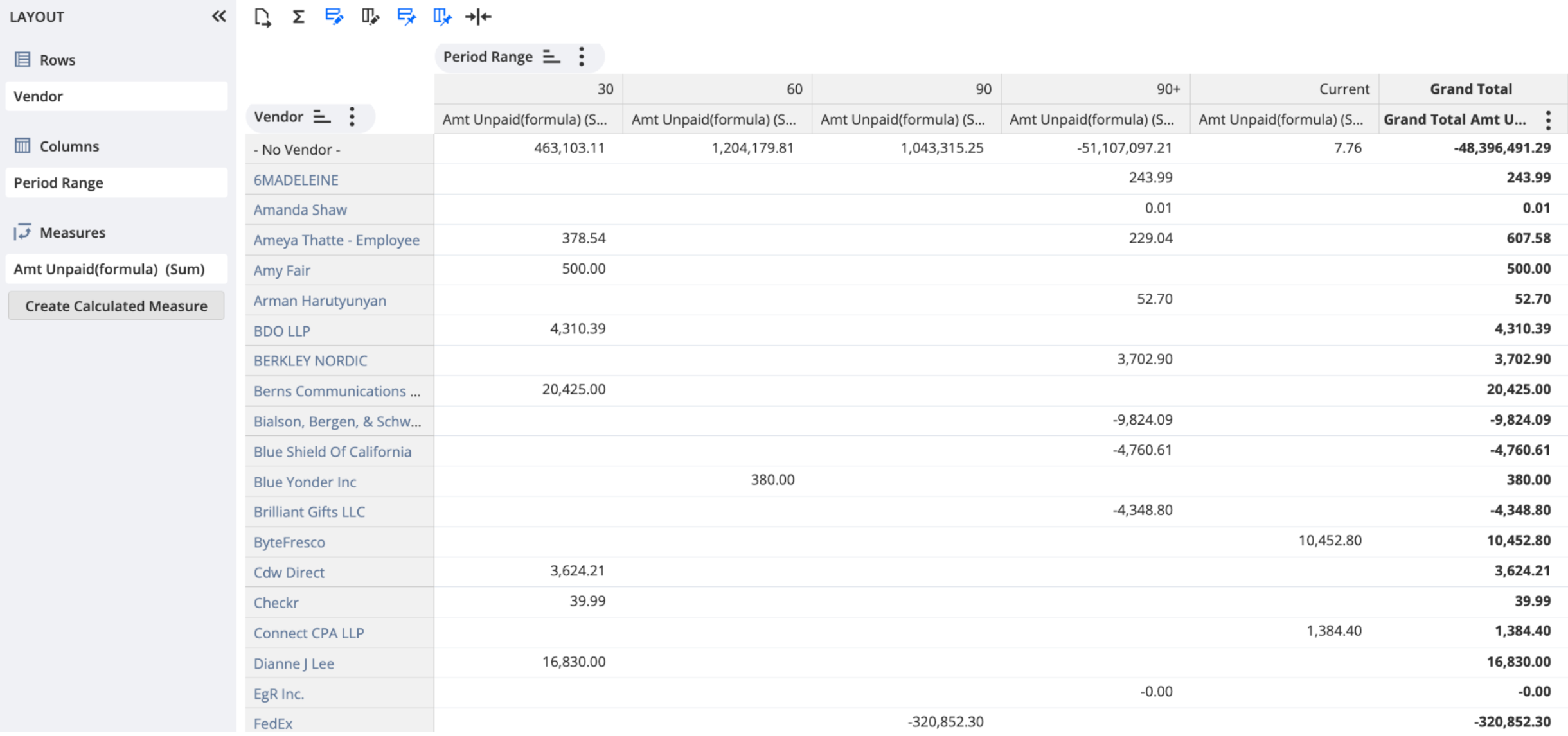
Click Create Workbook on the dataset, choose Pivot, and drag the aging fields into the rows and columns. The result reads like a standard AP aging report, with the buckets driven by period.
Limitations
If you operate in multiple currencies, and have open AP balances in currencies other than your subsidiary’s primary one, our story gets a bit more complicated. The dataset provides the consolidated amount at the current rate for Bill, Expense Report, and Journal, but not for Bill Credit and Bill Payment. So in a multi-currency environment with open balances sitting on Bill Credit or Bill Payment, the dataset will not produce a consolidated amount for those rows. The workaround is to export the dataset, convert the amounts, and build the pivot manually. If you are single currency, or your payable account never carries an open Bill Credit or Bill Payment, this does not affect you and the workbook handles everything.
Finally, custom transaction types that post to a payable account belong in the dataset, and you’ll need to adjust the formula above if you use those. Currency Revaluations also post to payable accounts, but do not belong in the dataset. As with the transaction list above, the native aging detail tells you which types you actually have.
AR works the same way
The same approach will work to build AR aging by period. Use the AR transaction types that carry an open balance, apply the same open-balance logic and the same period bucket formula, and you get a receivables aging that ties to the balance sheet the same way the payables version does.