
We recently needed to import a large number of Project Tasks for one of our NetSuite clients. The records to import were simple. This client uses Project Tasks to represent different functional areas on the Project: Editorial, Creative, Account Management, etc. They manage their project tasks and schedules, including time, in an upstream system, so in NetSuite, Project Tasks are used primarily to record project burn against budget.
The NetSuite help has long had a write-up about importing Project Tasks, starting with a Microsoft Project-based template that Mac users struggle to download and interact with. This approach is quite powerful, and since you can’t update task dependencies via CSV import, it’s important to get it right. If you’re loading tasks with a deep hierarchy, this is the right way. You get to use these special fields that are only available on import and only for this record type:
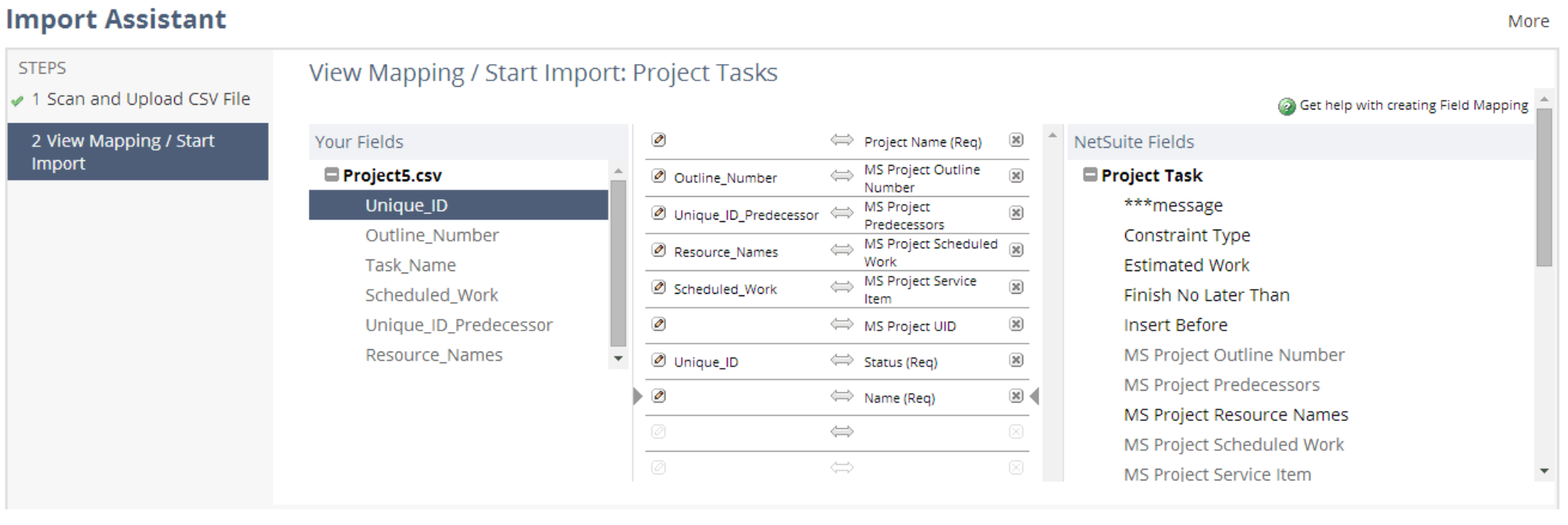
To import Project Tasks this way, navigate to Activities→Scheduling→Project Tasks→Import.
But as we’ve seen, not every organization needs task hierarchies to manage their business. In our case, it was easier just to load a simple CSV file using the standard CSV import tool. It’s straightforward once you know how.
Importing Project Tasks
Success or failure here is all about your CSV file. You need:
- Project Name
- Task Name
- Task Status
- Planned Work (if that feature is enabled in your account)
For us, all other fields were optional.
For project name, you can’t just run a saved search of Projects and export the Name field, though, because the CSV import asks for a special Name. It wants [ID <space> Name].
We used brute force: a Formula(Text) search result with formula
12CONCAT(CONCAT({entityid},' '),{altname})
You know what they say: if brute force isn’t working, it might be because you aren’t using enough of it yet!
It turns out in this case that there’s a better, easier way. You can just click the pencil next to “Project Name” and map it to project internal IDs from your file.
Once your import file is ready to go, navigate to Setup→Import/Export→Import CSV Records, and choose Relationships→Project Tasks:
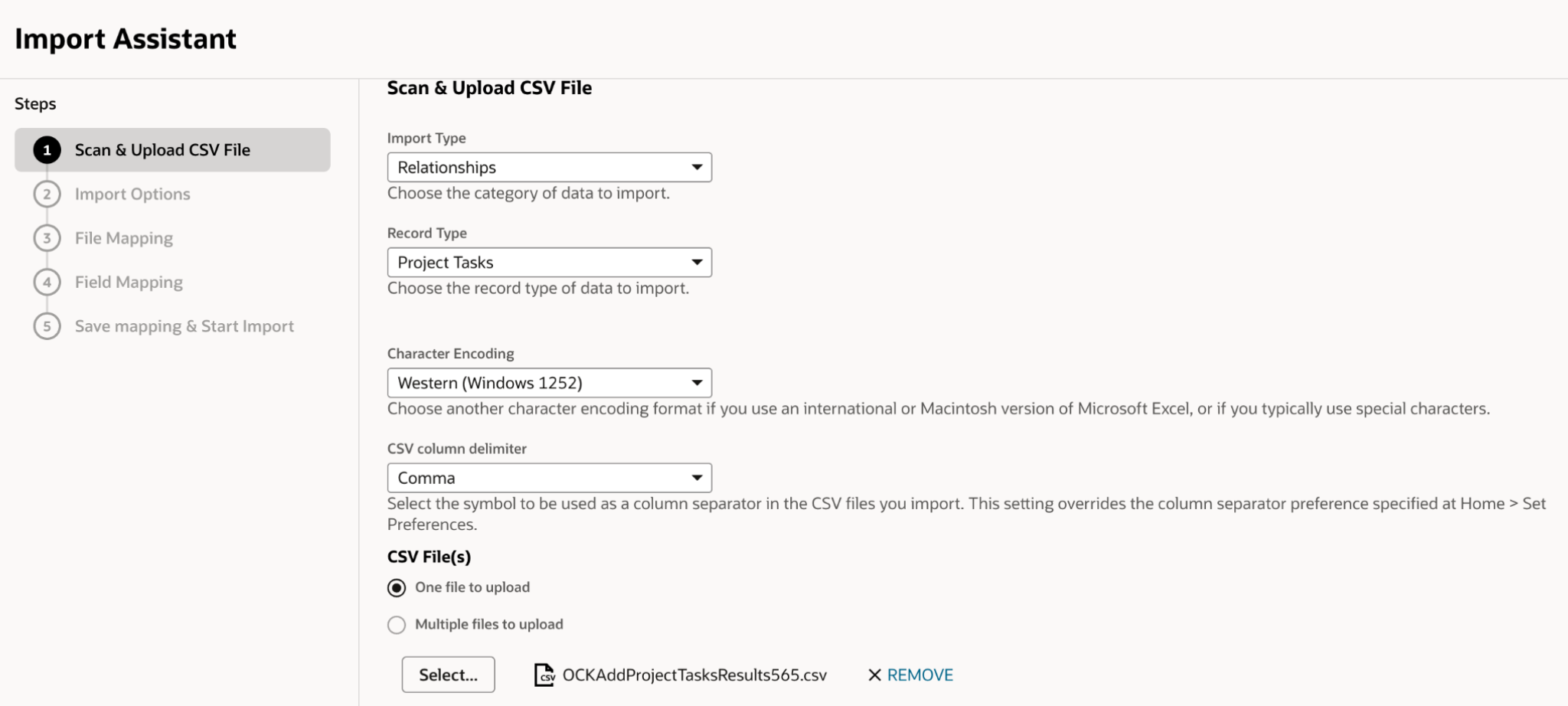
If you have any special characters in your file, be sure to set your encoding correctly. I almost lost my cool trying to import tasks to a Project someone had ingeniously named “2026 Projéct,” until I realized all I needed to do was select UTF-8 encoding.
Next, map your fields:
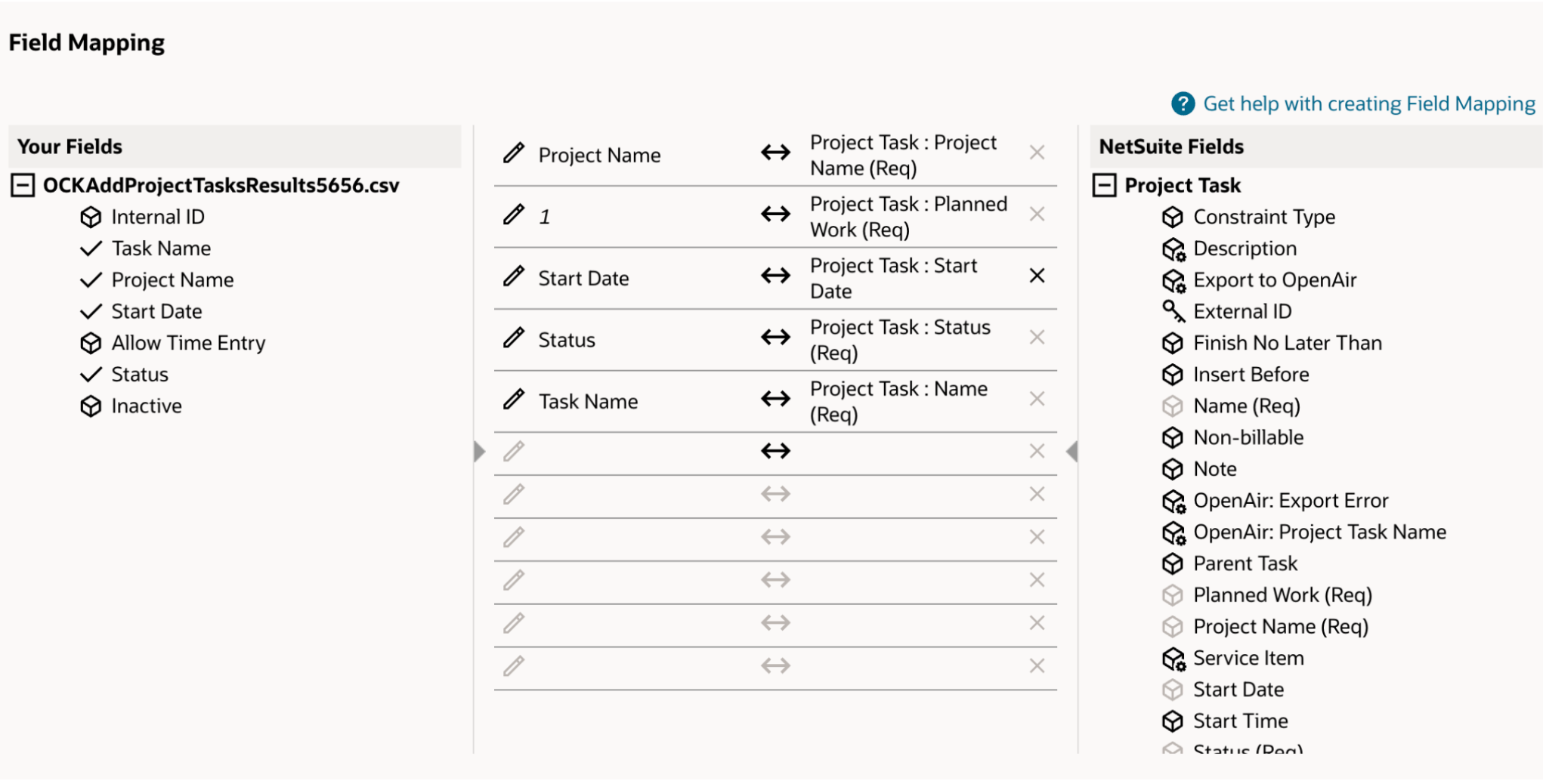
Click Next, then Run. If you’re going to be importing tasks in bulk regularly, save your import mapping.
That’s it. Hopefully this saves you some time.